

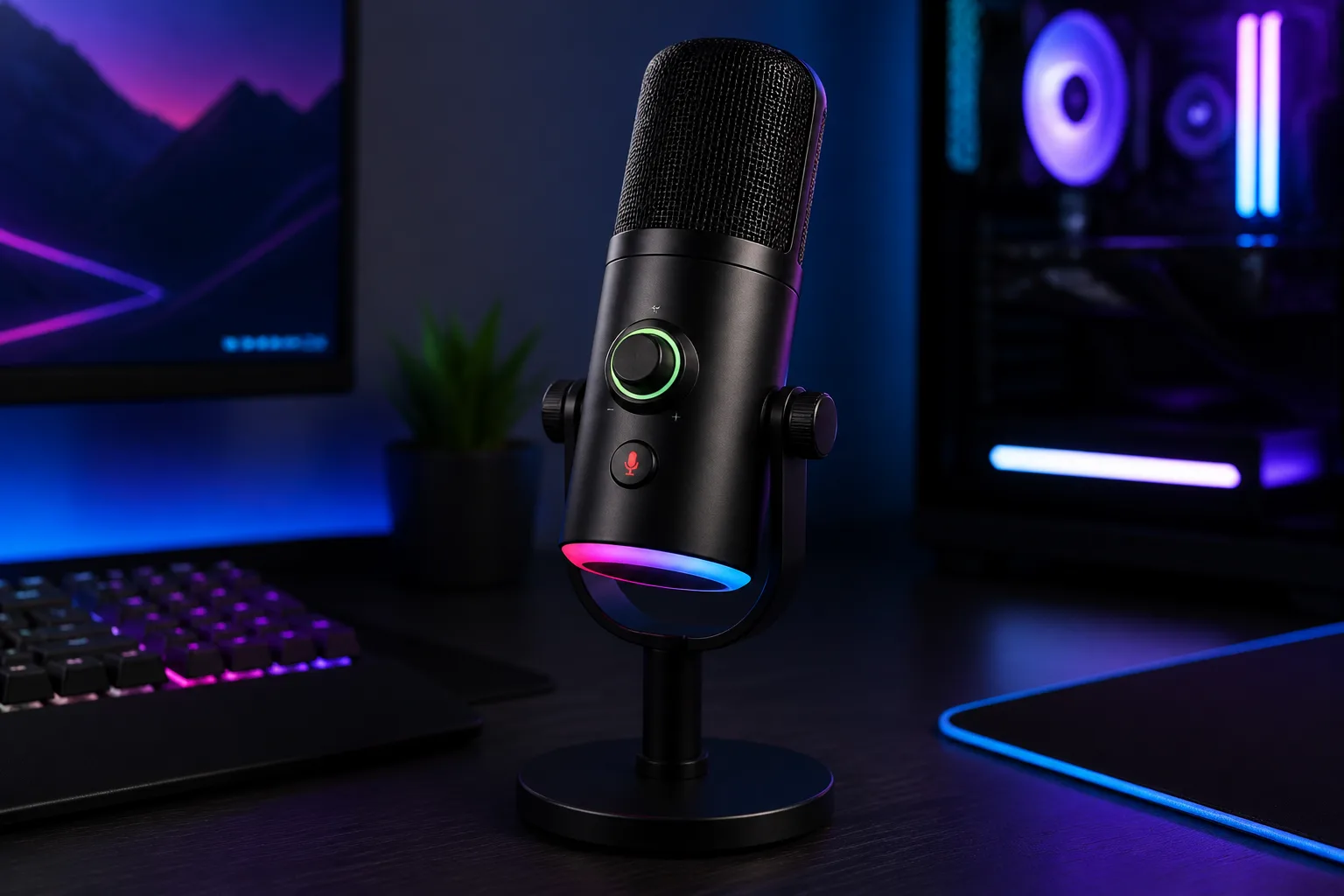
MRSDY USB Gaming Microphone: Features and First Impressions
A $16.99 microphone has one job to prove before anything else: can it make you understandable without turning your desk into a small audio laboratory? The MRSDY USB Gaming Microphone for PC with Noise Reduction, Mute, Gain, RGB looks promising for that narrow, practical goal, because it combines a dedicated desktop design with controls that are usually more useful than decorative specifications.
The listed price is $16.99, compared with an original price of $17.99. For PC gaming, live streaming, podcasting, online lessons, Zoom, Skype, YouTube videos, voice recording, and casual communication, that puts the MRSDY in the inexpensive plug-and-play category. You are paying for convenience first, not a documented studio recording platform.
The package contains a USB condenser microphone, desktop stand, 78-inch (2-meter) USB cable, user manual, and packing box. The stated setup is simple: connect the cable, select the microphone on your computer, and begin testing. No required driver or software package is listed.
That simplicity is appealing, but the supplied product information leaves several questions unanswered. It does not specify the polar pattern, frequency response, bit depth, sample rate, or compatibility with consoles and mobile devices. As a review for shoppers in 2026, this distinction matters: the features above are confirmed, while broader compatibility and detailed audio performance should be checked on the current listing before purchase.
The useful questions are therefore practical ones. How much typing and room noise can the advertised reduction limit? Is the gain control genuinely helpful? Does direct monitoring make calls and games easier to manage? If your answer to those questions is “I mainly need clear speech and a mute button,” this USB gaming microphone deserves consideration.

Key Features of the MRSDY USB Gaming Microphone
The MRSDY’s main advantage is that it puts several everyday controls on the microphone rather than making you hunt through a software panel. Connect the included cable to your PC, choose the microphone as the operating system’s input, and speak while watching the input meter. A short test before joining a game or call is worth the minute it takes; it tells you whether the computer is receiving the signal and whether your voice is too quiet or too strong.
The built-in RGB lighting changes through multiple color modes automatically. You can leave the dynamic effect running for an illuminated gaming desk or switch it off when you are working, studying, or recording in a less distracting space. Gradient lighting indicates that the microphone is working, while a solid-green light indicates that mute is active. That status cue is more useful than RGB alone, particularly when you are looking at a game rather than at the microphone.
A gain or volume knob gives you a direct way to raise the microphone’s sensitivity or output level. It cannot repair a weak capsule, a noisy room, or an awkward microphone position, though. More gain may make your voice louder while also making keyboard clicks, fan noise, breathing, and desk vibration more noticeable.
The quick-mute control is on the bottom. During a game, lesson, stream, or call, that can be handy when you need to cough, speak to someone nearby, or silence a sudden sound without opening an application. You should still practise reaching it, because a control that shifts the microphone when pressed is less convenient than one you can activate confidently.
For monitoring, the 3.5mm stereo output is designed to let you hear the microphone input directly, without the delay that can occur when monitoring through a computer application. It supports 3-pole TRS and 4-pole TRRS headphones. The supplied information does not confirm independent monitoring-volume control or headset controls, so do not assume that the headphone socket manages all of your computer audio.
The stand completes a compact desk package. Try several positions rather than accepting the first one: a nearer microphone can capture a stronger voice signal at a lower gain setting, while moving it away from a mechanical keyboard may reduce unwanted clicks. The best angle and distance depend on how you speak and where your desk vibrates.
Noise Reduction and Everyday Voice Quality
Noise cancellation sounds impressive in a product description, but its useful meaning is narrower: the microphone is intended to reduce sounds such as typing, clicking, and outdoor background noise. It will not make every busy room silent. A keyboard beside the stand, a loud computer fan, reflective walls, or several people speaking nearby can still affect what other people hear.
With an inexpensive USB condenser microphone, room acoustics and placement can matter as much as the electronic reduction feature. Your speaking direction, distance from the capsule, keyboard type, and fan noise all change the result. If the microphone is too far away, you may turn up gain and invite more room sound into the recording; if it is too close, plosives and breathing may become more obvious.
Use this repeatable test before judging the feature:
- Place the microphone where you expect to use it and record the same sentence with a fan and keyboard active.
- Repeat the sentence with the fan and keyboard switched off.
- Compare the two recordings through headphones, listening for typing, hiss, room echo, and changes in speech clarity.
- Test again while playing a game or joining a call, because real-time use often reveals sounds that a quiet recording hides.
Start the gain at a moderate setting. Keep the microphone close enough for a clear voice, then reduce sensitivity if keystrokes or room noise become prominent. Direct headphone monitoring helps you catch clipping, excessive gain, breathing, desk bumps, and background sounds before another person has to point them out.
Several technical details remain unconfirmed and should not be overstated: the product data does not provide a polar pattern, capsule size, frequency range, maximum SPL, signal-to-noise ratio, or the method used for Noise Reduction. That limits how confidently you can compare the MRSDY with microphones that publish full recording specifications.
In practical terms, casual gaming and calls are the most plausible strengths. Professional podcasting, studio recording, and narration in an untreated room demand more predictable performance and control. This USB gaming microphone may produce useful speech, but “noise reduction” should not be read as a promise of studio isolation.
Setup, Controls, and Desk Usability
First use should be methodical rather than rushed. Attach the microphone to its desktop stand, connect the USB lead, select it as the operating system’s input, plug in headphones if you want monitoring, and make a short test recording. Speak at the loudest level you expect during a game or call, because a quiet test can hide distortion that appears later.
To confirm mute, press the bottom-mounted control and watch for the solid-green RGB status. Then speak while looking at the recording application’s input meter. If the meter stops responding to your voice, the mute is doing what you expect; if it continues moving, investigate the selected input before relying on the button in a live meeting.
Turn the gain knob gradually instead of starting at maximum. Ask someone to listen, or replay the sample through headphones, while you adjust the control. The correct setting is the one that keeps ordinary speech clear and gives you room for a louder phrase without forcing the input into distortion.
The cable length gives you useful placement flexibility on a typical desk. Keep the lead away from areas where your hands, chair, or monitor stand will catch it, and leave enough slack that a small adjustment does not pull the microphone. Put the stand on a stable surface, avoid positioning it immediately beside a loud mechanical keyboard, and do not place it where an elbow can strike it.
Software-free operation will suit anyone who wants to connect the microphone and get on with work or gaming. The trade-off is a short list of unconfirmed refinements: advanced equalization, compression, routing, and RGB customization are not listed. You may be able to improve the result with settings in your operating system or communication app, but the product itself is not presented as a software-controlled audio system.
The bottom mute button may be easy to reach, but test your normal hand position. Press it several times while the microphone is on its stand and see whether the stand shifts or the body rotates. If it does, you may prefer to mute from your application during situations where a stable microphone position matters.
What Customers Are Saying
The available product information does not include a verified star rating or review count, so it would be misleading to claim that customer reviews establish a particular performance pattern. Those figures should be checked on the live listing at publication time. The same caution applies to claims about long-term reliability: no supplied review record confirms how the cable, controls, or stand perform after extended use.
When you read the current buyer comments, look for detailed observations rather than isolated praise or criticism. The most useful evidence will answer whether people are understood clearly in Discord or calls, whether typing and clicking remain prominent, and whether the plug-and-play setup works without repeated troubleshooting.
Pay particular attention to comments covering the product’s actual feature bundle:
- Voice clarity: Do buyers describe speech as clear at normal volume, or do they mention hiss, muffled sound, or distortion?
- Controls: Is the gain knob predictable, and does the mute button respond consistently?
- Monitoring: Do users hear their microphone input clearly through headphones, or do they report weak or delayed monitoring?
- Physical package: Does the stand stay stable, and does the USB connection remain recognised over time?
- RGB: Do buyers like the changing light effect, and does the indicator behave as described?
Verified-buyer comments should also be read in light of expectations. Someone replacing a laptop microphone may value immediate intelligibility, a physical mute, and lighting at this price. Someone expecting studio-grade audio may be disappointed by the absence of published recording specifications, even if the microphone works well for a game chat.
Give more weight to repeated, specific reports than to a single sentence saying the microphone is “bad” or “perfect.” If the current listing shows frequent reports of intermittent USB recognition, audible hiss, loose controls, an unstable stand, or poor RGB behaviour, those issues deserve attention; if they appear only in isolated comments without detail, they need more cautious interpretation.

Who Should Buy This USB Gaming Microphone?
This USB gaming microphone is aimed most clearly at PC players who want a dedicated desk microphone with physical gain adjustment, quick mute, RGB lighting, and headphone monitoring without spending much. It also makes sense for students, remote workers, casual streamers, and video-call users who would rather connect one USB accessory than configure an audio interface or install control software.
RGB-focused desk owners have a simple choice. Leave the dynamic lighting active when ambience matters, or turn it off when reflections and visual distraction would interfere with work. The lighting is not a reason to buy the microphone by itself, but it is a pleasant extra when the rest of the control layout already suits you.
You should look elsewhere if your priorities are more demanding. Musicians and professional podcasters may need published recording specifications and more predictable processing. Streamers who rely on equalization, compression, routing, or detailed lighting control may find the feature set too limited. You should also pause if you need a boom arm, shock mount, or confirmed console, Mac, phone, or USB-C support, because those details are not supplied here.
Use this decision process before ordering:
- Define the main use: game chat, calls, lessons, streaming, or serious recording.
- Check that your computer has the required USB connection and confirm wider device compatibility on the current listing.
- Confirm that your headphones use a supported plug type if direct monitoring is important.
- Decide whether a desktop stand works with your workspace or whether you specifically need a boom arm.
- Compare the current complete-package price with alternatives, including their controls, accessories, and published specifications.
A budget microphone can be a sensible purchase when your priority is intelligible speech and convenient control. It should not be treated as equivalent to a higher-priced model that documents its pickup pattern, frequency response, recording resolution, and processing options.
MRSDY USB Gaming Microphone Value and Alternatives
At $16.99, the MRSDY’s value comes from the bundle rather than from one standout audio specification. You get USB plug-and-play operation, a 2-meter cable, RGB lighting, advertised noise reduction, gain control, quick mute, a 3.5mm monitoring output, and a desktop stand. The stated original price is $17.99, a $1.00 difference, but the sensible value question is whether the current $16.99 package meets your needs—not whether the reference price makes the discount look larger.
The two named alternatives illustrate why comparison requires care. The FIFINE K669B and TONOR TC30 should be assessed using their current listings, not assumptions based on brand reputation or appearance. Check each model’s published pickup pattern, connection type, controls, accessories, monitoring options, software requirements, current price, rating, review count, and buyer feedback before deciding that one performs better.
| Category | MRSDY | FIFINE K669B | TONOR TC30 |
|---|---|---|---|
| Connection | USB; included cable | Check current listing | Check current listing |
| Monitoring | 3.5mm output; TRS and TRRS supported | Check current listing | Check current listing |
| Mute control | Bottom-mounted quick mute | Check current listing | Check current listing |
| Gain control | Physical knob | Check current listing | Check current listing |
| Lighting | Dynamic RGB; can be switched off | Check current listing | Check current listing |
| Accessories | Stand, cable, manual, box | Check current listing | Check current listing |
| Published audio specifications | Several key details not supplied | Check current listing | Check current listing |
| Current price | $16.99 listed | Check current listing | Check current listing |
| Rating and review count | Not supplied | Check current listing | Check current listing |
Compare in a fixed order: first match connection and monitoring requirements, then compare physical controls, then examine published audio specifications and review patterns, and finally compare the complete package price. The MRSDY is most compelling when its simple setup and hands-on controls matter more than detailed recording data.
How to Get the Best Results From the Microphone
Begin with placement. Put the stand on a stable surface, position the microphone near you, angle it toward your mouth, and move it away from the keyboard and computer fans. Small changes can matter: speak a sentence, shift the microphone slightly, and listen through headphones before deciding that the gain setting is the problem.
Before your first important call or stream, record a 20- to 30-second sample. Include normal speech and the loudest phrase you expect to use, then listen for distortion, harsh breathing, desk vibration, and a noisy background. Adjust gain until speech is clear without making the room louder than your voice.
Test mute before a meeting or live broadcast rather than trusting it on the first attempt. Press the control, watch for the solid-green indicator, and confirm that the input meter no longer responds to speech. When you are ready to talk, unmute deliberately and check that the working status returns.
If monitoring behaves unexpectedly, try both supported headphone plug types—a 3-pole TRS and a 4-pole TRRS headset—without assuming that an adapter or a particular device will work. The product information confirms those headphone formats, but it does not confirm every adapter, phone, console, or computer arrangement.
RGB is optional ambience, not an audio setting. Turn it off if it distracts you or creates reflections in your workspace; leave it on when the changing light suits your desk. Finally, check the current listing for operating-system and device compatibility, return terms, warranty details, and updated customer comments before placing an order.
The buying takeaway is straightforward: the MRSDY USB Gaming Microphone costs $16.99 and is strongest for PC gaming, calls, lessons, and casual streaming where simple speech capture, physical controls, and easy setup matter. The unresolved question is whether you need those conveniences or more advanced audio control backed by fully published specifications.
Pros and Cons
Pros
- Low listed price of $16.99, only $1.00 below the stated original price of $17.99.
- Plug-and-play USB setup with a desktop stand and a 78-inch (2-meter) cable included.
- Physical gain control, quick mute, dynamic RGB lighting, and 3.5mm direct monitoring.
- Supports both 3-pole TRS and 4-pole TRRS headphones for monitoring.
Cons
- The supplied information does not confirm a polar pattern, frequency response, bit depth, sample rate, capsule size, maximum SPL, or signal-to-noise ratio.
- The listing information does not confirm console, Mac, mobile-device, USB-C, warranty, or long-term reliability support.
- The bottom-mounted mute button and desktop stand may be less convenient than front-mounted controls or a boom-arm setup for some desks.
- Advanced equalization, compression, routing, and RGB customization are not listed.
Final Verdict
Key Takeaways
- At $16.99, the MRSDY offers a generous set of convenience features: plug-and-play USB operation, gain, mute, RGB lighting, headphone monitoring, and a desktop stand.
- Its noise-reduction claim should be treated as a way to reduce some typing, clicking, and outdoor sound—not as a substitute for careful placement or a quiet room.
- The product is a sensible low-cost choice for PC gaming, calls, lessons, and casual streaming, but important audio specifications and wider device compatibility are not supplied.
- The strongest buying decision depends on whether you value physical controls and easy setup more than detailed recording specifications or advanced software processing.
Frequently Asked Questions
Does the MRSDY USB Gaming Microphone need software or drivers?
Yes, the product description says it is plug and play, with no additional driver or software required. You connect the included USB cable, select the microphone as your computer’s input, and test the level before use. Compatibility with consoles, phones, Mac computers, and USB-C devices is not confirmed in the supplied information, so check the current listing before ordering.
Can you monitor your voice through headphones?
The microphone has a 3.5mm stereo headphone output for direct, latency-free monitoring, and the product description states that both 3-pole TRS and 4-pole TRRS headphones are supported. The supplied details do not explain whether headphone volume can be adjusted independently or whether headset controls are supported.
What controls does this USB gaming microphone have?
It includes a gain or volume knob, a quick-mute control, and dynamic RGB lighting that can be switched off. The product description does not list advanced equalization, compression, routing, or detailed RGB customization through software.
Who should consider the MRSDY microphone?
It is most suitable for PC gaming, calls, online lessons, casual streaming, and everyday voice recording where clear speech and simple controls matter more than published studio specifications. Professional podcasting, music recording, and untreated-room narration may call for a microphone with more documented audio performance and greater control.
Disclosure: As an Amazon Associate, I earn from qualifying purchases.